

A task's economy
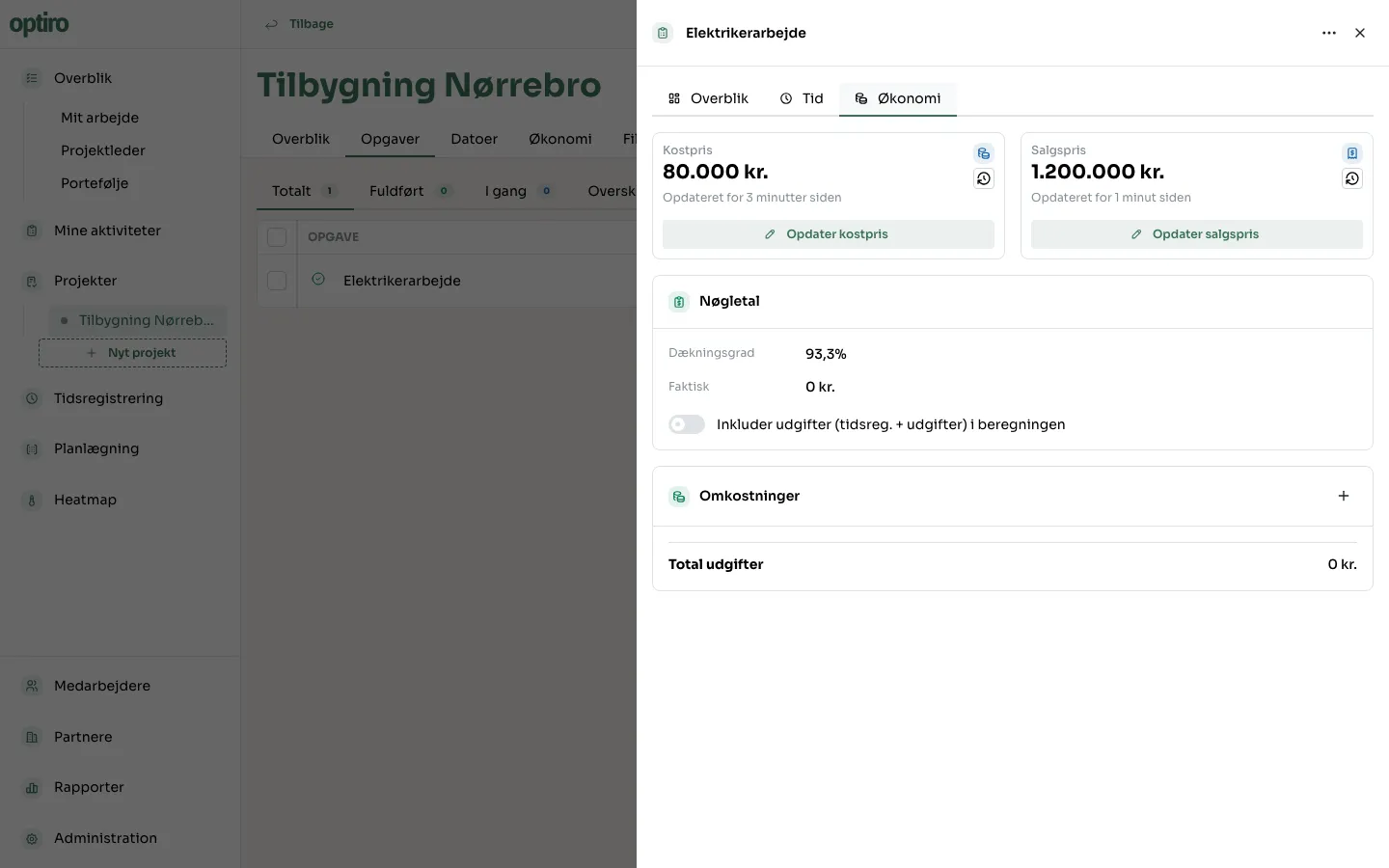
Every task has its own economy, separate from the rest of the project. Open a task and click the Økonomi (Economy) tab in the task panel to see it.
Attributes
Section titled “Attributes”- Kostpris (Cost price) — what it costs the company to carry out the task (e.g. hours × hourly rate, materials).
- Salgspris (Sales price) — what the task is invoiced to the client for.
- Dækningsgrad (Margin) — calculated automatically as
(sales price − cost price) / sales price. Shows the task’s margin as a percentage. - Faktisk (Actual) — real-world consumption. Can count only logged expenses, or include time entries + expenses, depending on the Inkluder udgifter (tidsreg. + udgifter) i beregningen toggle.
- Omkostninger (Expenses) — a list of concrete expenses logged against the task (see below).
Click Opdater kostpris / Opdater salgspris (Update cost/sales price) to change the amount — the history icon (🕐) shows previous values and when they were updated.
Log an expense
Section titled “Log an expense”Click + in the Omkostninger section.
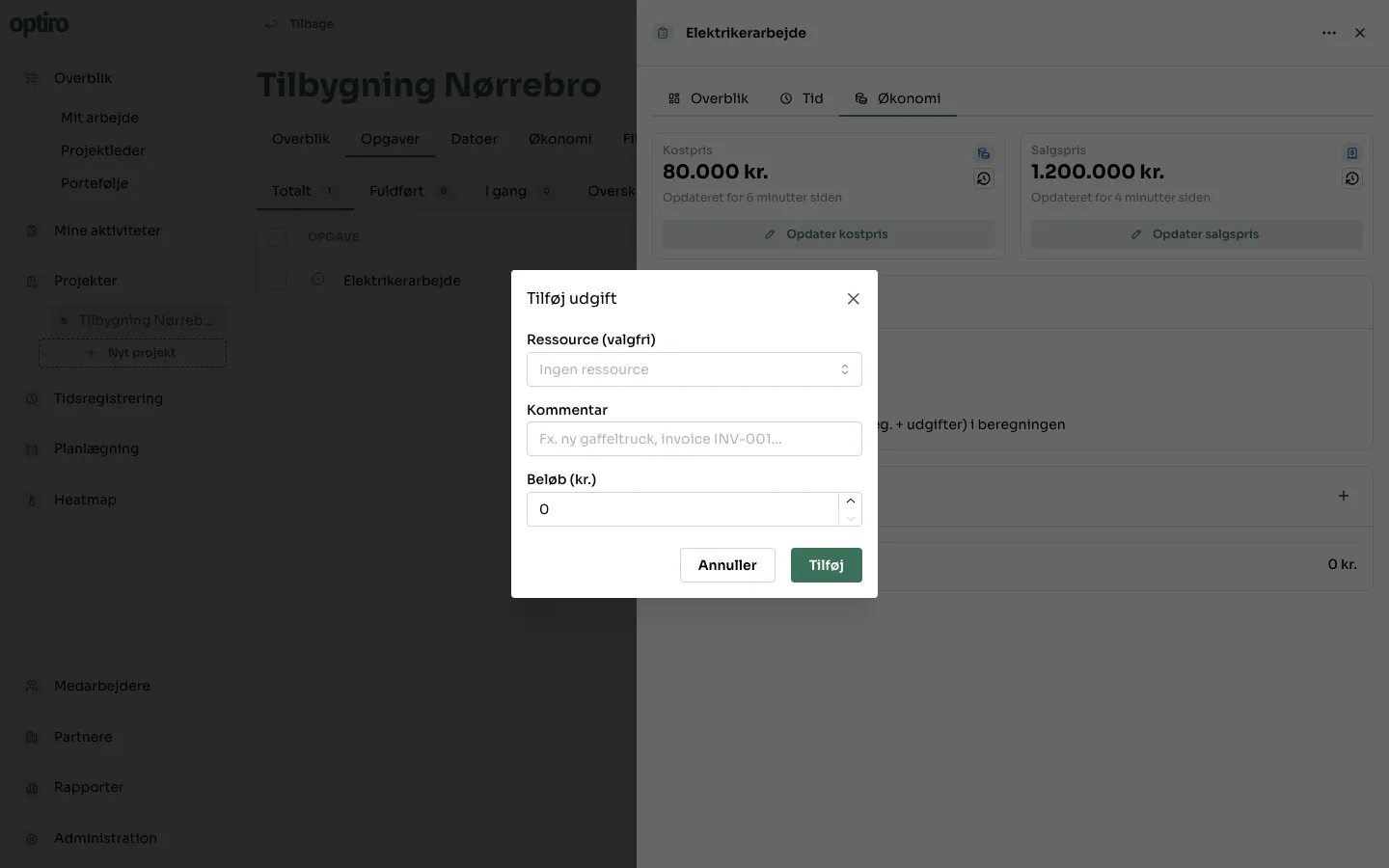
Fill in:
- Ressource (valgfri) (Resource, optional) — if the expense belongs to a specific employee or partner.
- Kommentar (Comment) — what the expense is, e.g. an invoice number.
- Beløb (kr.) (Amount) — the size of the expense.
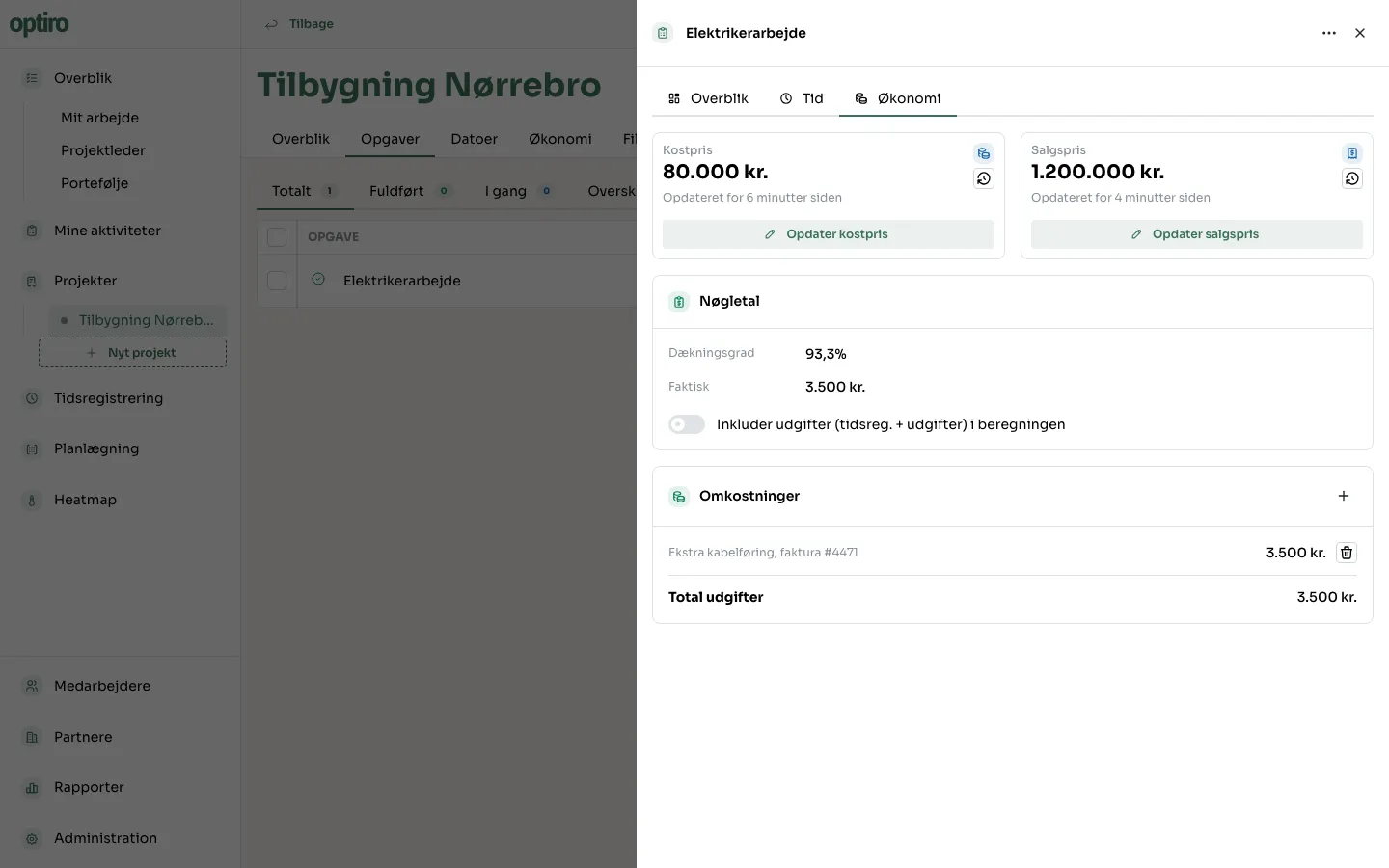
Click Tilføj (Add). The expense is added to Total udgifter (Total expenses), and “Faktisk” updates.
Next steps
Section titled “Next steps”- Project economy — see how the task’s numbers roll up across the whole project.