

Task dependencies
A dependency says one task can only start once another is finished (or some time after). Move the first task, and the second can automatically follow.
Create a dependency from the task panel
Section titled “Create a dependency from the task panel”Open the task that should wait on another one, and find the Venter på (Waiting on) card.
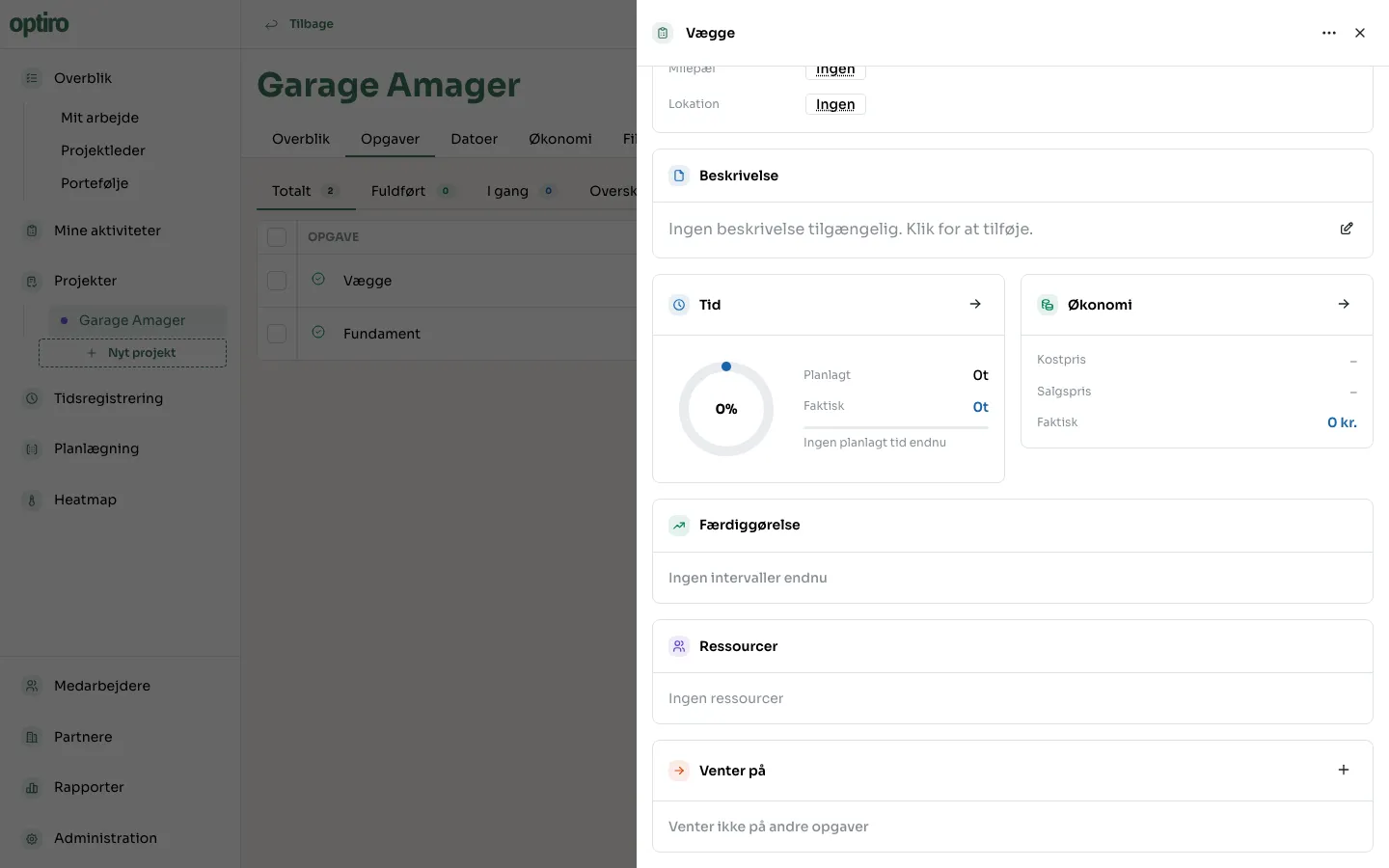
Click +, pick which task it should wait on, and fill in the lag.
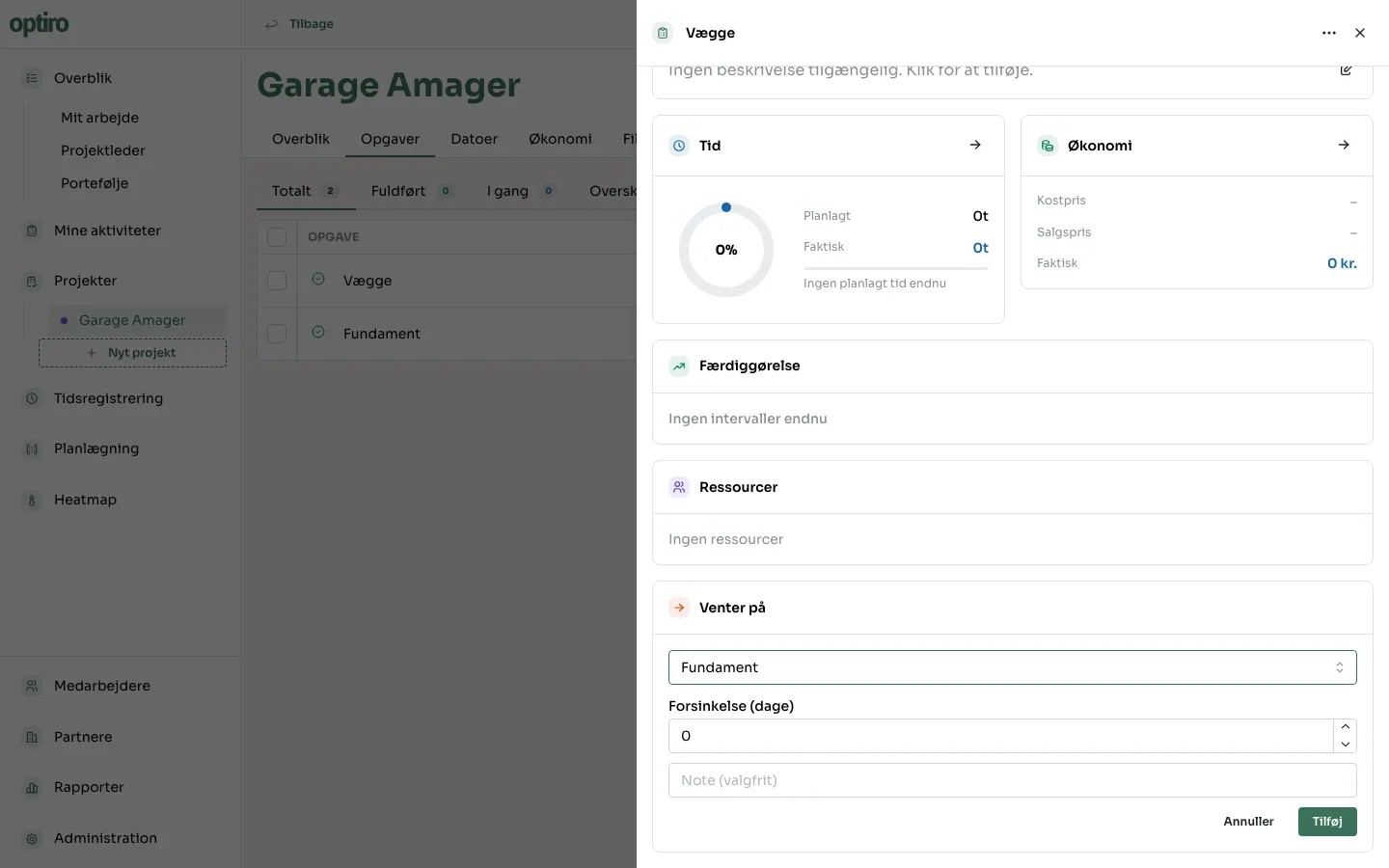
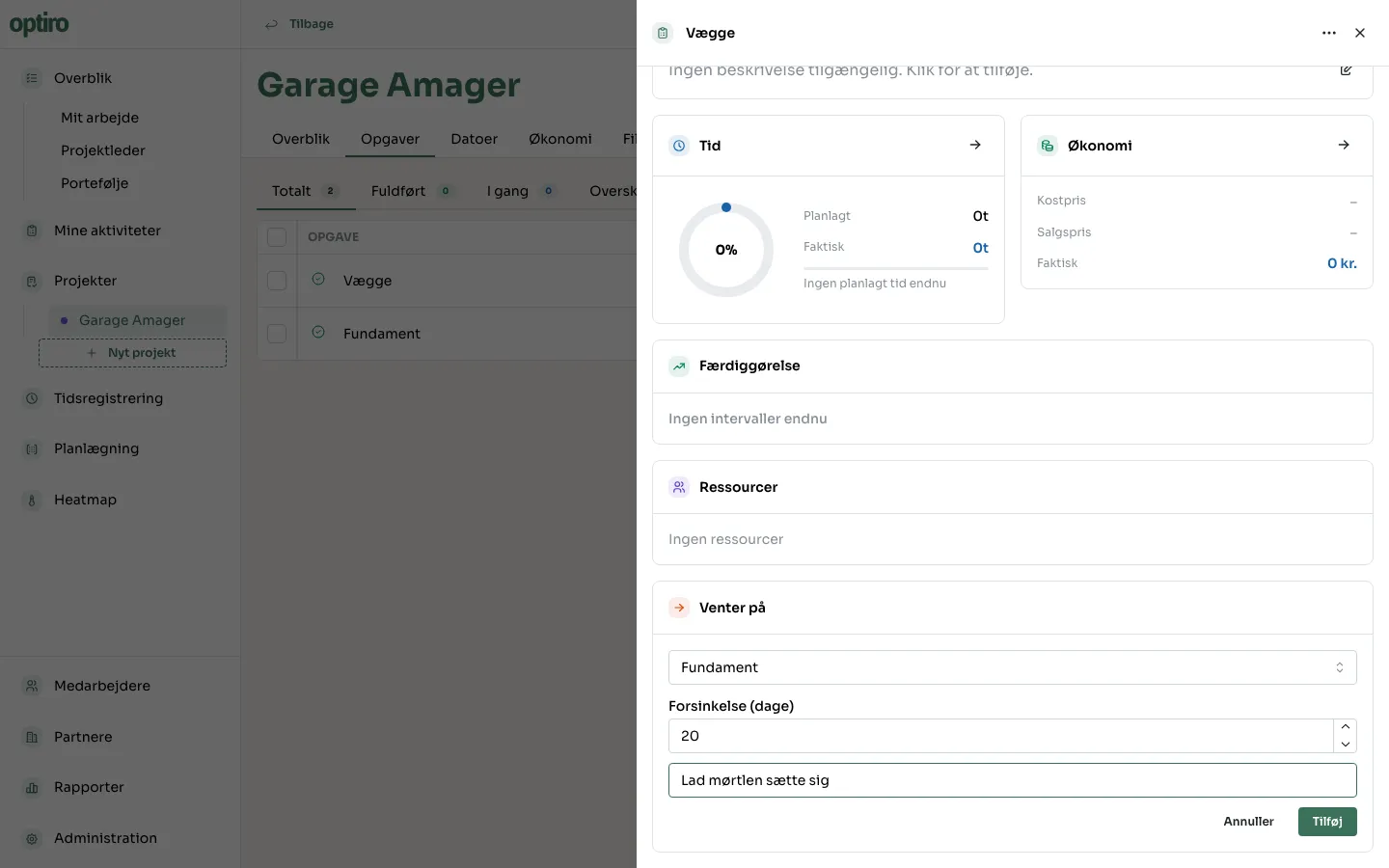
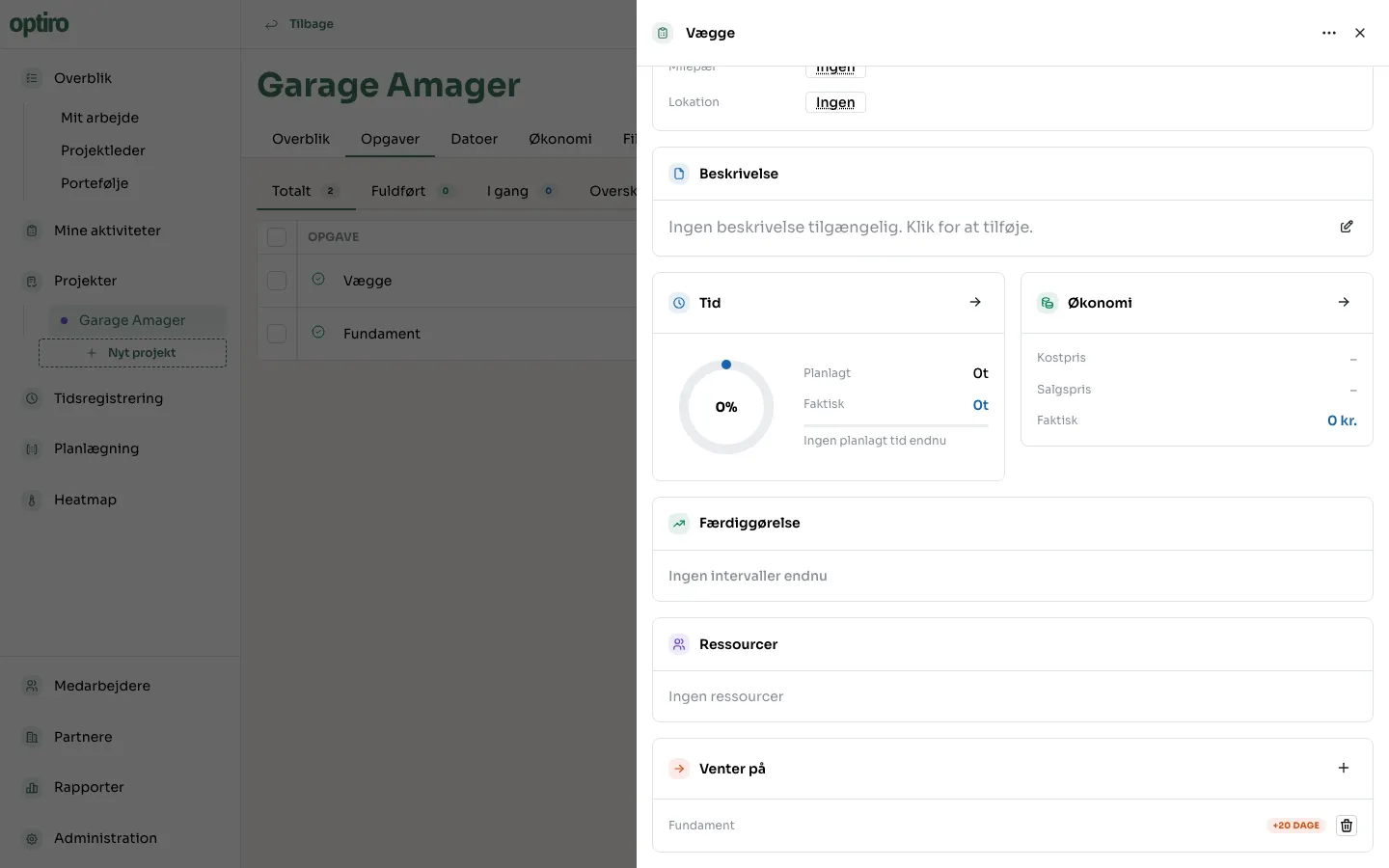
Click Tilføj (Add). The dependency now shows as a card with a days-of-lag badge and a way to remove it again.
Create a dependency directly on the Gantt chart
Section titled “Create a dependency directly on the Gantt chart”Two shortcuts also exist on the timeline itself:
- Drag a link: hover over a task bar — two small dots appear at either end. Drag from a dot onto another task’s bar to connect them.
- Chain several at once: Ctrl/Cmd-click several task bars in the order they should follow each other. A bar at the bottom of the screen shows the selected tasks — click Kæd i rækkefølge (Chain in order) to create dependencies between all of them at once, or Ryd valg (Clear selection) to start over.
Both paths ask you for a lag before the dependency is created.
Lag vs. slack
Section titled “Lag vs. slack”Two different things that are easy to mix up:
- Forsinkelse (dage) / Ventetid (dage) (Lag, in days) — a property of the dependency itself. It sets how many days must at least pass from when the first task ends to when the second may start. 0 means the next task can start the same day. A negative value allows the tasks to overlap (the next one starts before the first is fully done) — useful for things like drying time, where some of the work can proceed anyway.
- Slack (luft) — calculated automatically for every task, and not something you set yourself. It’s how many days a task can slip without delaying the project’s delivery date or the task waiting on it. A task with zero or negative slack sits on the critical path — any delay here delays the whole project.
What happens when a task moves?
Section titled “What happens when a task moves?”If a task with successors shifts its end date, Optiro automatically checks whether that affects the tasks waiting on it:
- If the successor has enough slack, it absorbs all or part of the shift and doesn’t move itself.
- If not, the successor gets pushed forward too — and the same happens recursively down the chain.
- You get a notification when this happens: “Afhængige opgaver flyttet” (Dependent tasks moved), naming the task(s) that followed along.
A dependency can’t be created if it would form a cycle (task A waits on B, which waits on A), or if the tasks don’t belong to the same project.
Next steps
Section titled “Next steps”- Book an interval — see how a task’s actual bookings move when a dependency triggers a shift.